

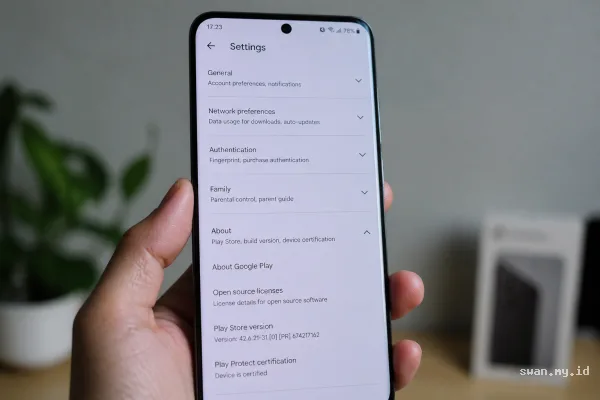
Swan.my.id - Jakarta, a Play Protect certification issue can prevent a realme phone from accessing some Google apps and services. Users can check the device status in Google Play Store and try registering the phone with Google using its Google Services Framework ID.
The problem appears when Google Play Store labels a device as “Device is not certified”. Some users have reported seeing this status after an over-the-air update. In that situation, the device’s GSF value may change and no longer match the value previously registered with Google.
This guide explains the available troubleshooting method. The process may take some time, and the result is not necessarily immediate after registration or a reboot.
Check the Play Protect Certification Status
First, open the Google Play Store on your realme phone. Then, follow these steps:
- Tap the three-line menu icon in the upper-left corner.
- Open Settings.
- Scroll down to the Play Protect certification section.
- Check whether the page shows “Device is certified” or “Device is not certified”.
If the phone shows the certified status, you do not need to follow the registration process. However, an uncertified status can affect access to Google apps, future Android system updates, and secure data backup.
Find the GSF ID with Device ID
Before starting, close recent apps on the phone. Next, download and install the Device ID application. The original guide recommends using a trusted Android app hosting site when Google Play Store does not allow the download.
Some phones may still download Device ID through Google Play Store even when the certification status remains uncertain. After installing the application, open it and allow the requested permissions.
Look for the entry named GSF, which stands for Google Services Framework. Copy the number shown next to it. This value acts as the device’s unique identifier and uses a 64-bit number generated during the device’s first login.
Keep in mind that a factory reset can change the GSF value. Therefore, use the current value displayed by the Device ID application.
Register the Device with Google
Open Google’s device registration page in a browser. Sign in with the Google account associated with the phone. The page will request the GSF ID that you copied earlier.
Paste the number into the required field. Complete the CAPTCHA, then select the registration button. Afterward, enter your Google account details in Google Play Store if the application requests them.
Finally, restart the realme phone. Google may need some time to process the registration, so the Play Protect status might not change immediately.
What to Do If the Status Does Not Change
Registration does not always resolve the issue at once. Some users may see a message stating that the device has already been registered. In that case, restart the phone and allow additional time for the status to update.
If the Play Protect certification issue continues for a long period, submit a bug report through the appropriate realme bug report section. The original guidance also notes that many cases appeared after an OTA update, especially when the device’s GSF value changed unexpectedly.
Frequently Asked Questions
Can a factory reset affect the GSF ID?
Yes. A factory reset may change the GSF value. Check the current value again before attempting registration.
Does the fix work immediately?
Not always. Google may need time to process the registration. Restarting the phone can also help the device check its updated status.
What does an uncertified status affect?
It may affect access to Google apps and services. The device may also experience problems with future Android updates and secure data backup.
